
What Is a Smartboard? Understanding the All-in-One Interactive Panel

Updated: Sep 23
Traditionally, this type of display was commonly known as an interactive panel or interactive flat panel display (IFPD). Today, many customers, schools and businesses in Malaysia and Singapore increasingly refer to it as a smartboard because the term more clearly reflects its all-in-one, intelligent and interactive capabilities.
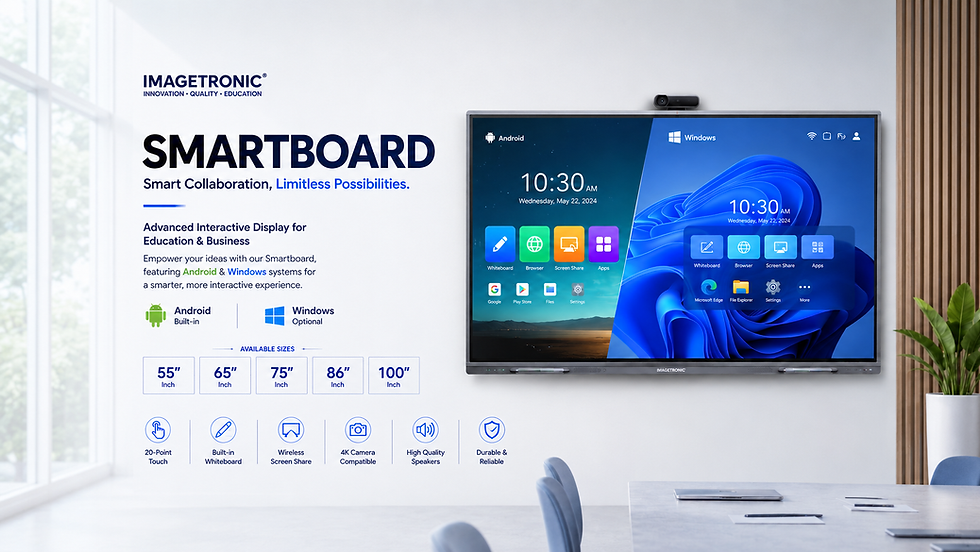
A smartboard is a large touchscreen display that combines a digital whiteboard, presentation screen, built-in computer system, speakers and collaboration tools in one device. It allows users to write, present, share screens, open applications and conduct video meetings directly from the display. In simple terms, it works like a giant tablet designed for classrooms, training centres and meeting rooms.
2. What Does “All-in-One Interactive Panel” Mean?
In a traditional classroom or meeting room, users may need several separate devices to complete a presentation—a whiteboard for writing, a projector or television for displaying content, a computer for opening files, speakers for audio, and a camera and microphone for video conferencing.
A smartboard simplifies this traditionally complicated setup by combining these different tools and processes into a single piece of hardware. It brings the familiar experience of writing on a traditional whiteboard together with modern touchscreen and digital technology.
Depending on the model, an all-in-one interactive panel may include:
4K display for clear presentations, text, images and videos
Touchscreen control for writing and operating the screen directly
Digital whiteboard for creating, saving and sharing notes
Built-in Android system for opening files, websites and applications
Built-in speakers for presentations and multimedia content
Camera and microphone for video meetings, depending on the model
Wireless screen sharing from laptops, tablets and smartphones
Video conferencing through compatible meeting applications
Optional Windows OPS for users who require a complete Windows environment
One smartboard can perform the functions of a display screen, traditional whiteboard, presentation system, multimedia player and video conferencing device—all within a single interactive panel.
In other words, a smartboard turns a process that once required several devices, cables and setup steps into a simpler, more connected experience. It modernises the traditional whiteboard by combining it with the technology needed for today’s classrooms, training centres and meeting rooms.
3. How Does a Smartboard Work?
A smartboard operates through a built-in system that allows users to interact directly with the screen. Instead of controlling everything from a separate computer, users can write, open files, play videos, browse websites and run applications directly on the interactive display.
It can also connect to laptops, smartphones and other devices, making it suitable for different teaching, presentation and meeting requirements.
Built-in Android System
Most modern smartboards include a built-in Android operating system. This means the smartboard can operate independently without being connected to a separate computer.
Its interface works similarly to an Android tablet, but on a much larger touchscreen.

Users can:
Open the digital whiteboard
Browse websites
Play videos and multimedia content
View documents, images and presentations
Access compatible Android applications
Join online meetings
Store and manage files
For everyday activities such as whiteboarding, presentations, web browsing and video conferencing, the built-in Android system is usually sufficient. This helps reduce the number of external devices and cables required in the room.
Touchscreen Technology
The touchscreen allows users to control the smartboard using their fingers or a stylus. Instead of using a mouse, users can tap, swipe, drag and write directly on the display.
Depending on the model, multiple users may be able to interact with the screen simultaneously. This makes it useful for classroom exercises, team discussions and collaborative brainstorming.
Users can:
Write or draw with a finger or stylus
Move and resize objects
Zoom in and out of documents or images
Highlight and annotate presentation content
Erase selected content or clear the entire page
Save and share completed notes
This combination of touch control and digital tools creates a more interactive experience than a traditional display or whiteboard.
Laptop and Device Connections
Although a smartboard can work independently, users can still connect their laptops, smartphones, tablets and other devices when required.
Common connection methods include:
HDMI: Provides a stable wired connection for displaying video and audio from a laptop
USB: Connects storage devices, cameras and other compatible accessories
USB Type-C: Depending on the device, one cable may transmit video, audio, touch data and power
Wireless Dongle: Allows users to share their laptop screen without a standard HDMI cable
Wireless Screen Sharing: Lets compatible laptops, tablets and smartphones cast content directly to the smartboard
Wireless screen sharing is convenient, but its performance may be affected by the network environment. For important presentations, HDMI normally provides the most stable connection, followed by a wireless dongle and then network-based wireless sharing.
Optional Windows OPS
A Windows OPS is a compact computer module installed directly into a compatible smartboard. Once installed, it allows the smartboard to operate as a complete Windows computer without requiring an external desktop or laptop.
A Windows OPS may be useful for:
Government departments and institutions
Organisations that rely on Windows-only software
Advanced business applications
Specialised education or engineering programs
Users who want a permanent Windows system inside the smartboard
However, not every user needs a Windows OPS. The built-in Android system is normally sufficient for digital whiteboarding, presentations, videos, web browsing and common meeting applications.
Users who only require Windows occasionally can also connect their existing laptop through HDMI, USB Type-C or wireless screen sharing instead of purchasing an additional OPS computer.
A smartboard can operate independently through Android, connect to an existing laptop when required, or become a complete Windows computer with an optional OPS module.
4. What Can You Do With a Smartboard?
A smartboard is not only used to display information. It allows users to interact with content, write directly on the screen, share ideas and work together using one display.
Whether it is installed in a classroom, training centre or meeting room, the smartboard can support different activities without requiring users to constantly change between a whiteboard, projector, television and computer.
Write and Save Digital Notes
The built-in digital whiteboard allows users to write and draw directly on the screen using a finger or stylus.
Unlike a traditional whiteboard, the content does not have to be erased and lost after a lesson or meeting.

Users can:
Write, draw and highlight important points
Change the pen colour, thickness and writing style
Insert shapes, diagrams and images
Move, resize and organise content
Create multiple whiteboard pages
Save notes as digital files
Export or share the completed notes
Teachers can save lesson notes for their students, while meeting participants can share discussion points without having to take photographs of a traditional whiteboard.
Present Documents and Videos
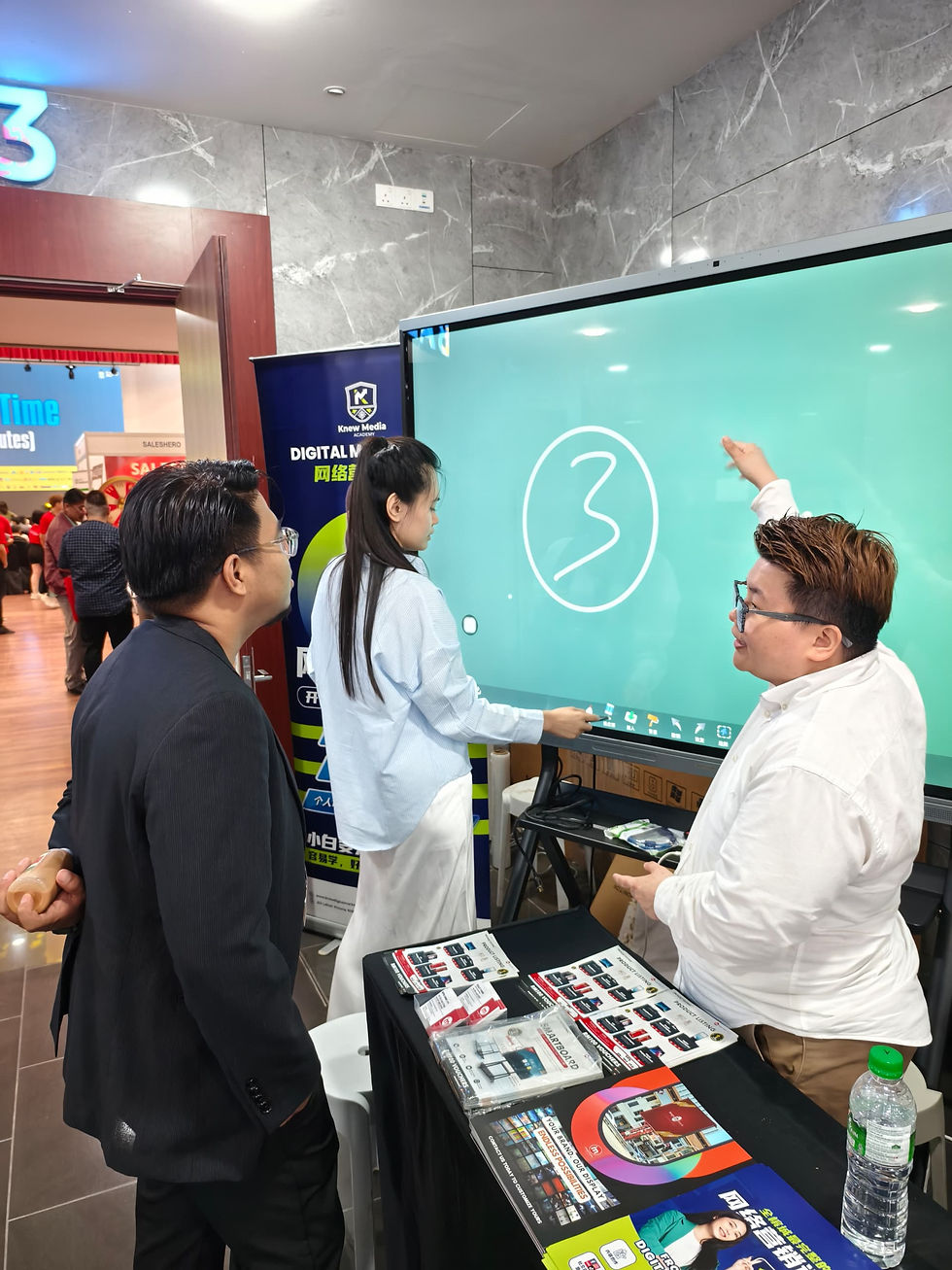
A smartboard can be used as a large presentation screen for different types of content, including:
PowerPoint presentations
PDF documents
Word and spreadsheet files
Images and diagrams
Websites
YouTube and other video content
Users can also write or highlight directly over the displayed content. For example, a teacher can mark an important section of a diagram, while a presenter can annotate a document during a discussion.
This creates a more engaging experience than simply showing slides on a conventional display.
Share a Laptop or Mobile Screen
Users can share content from a laptop, tablet or smartphone through wired or wireless connections.
Common screen-sharing methods include:
HDMI connection: A reliable wired option for important presentations
Wireless dongle: A convenient way to share a laptop screen without using a standard HDMI cable
Wireless screen sharing: Allows compatible devices to cast content over the network
USB Type-C: On supported devices, one cable may carry video, audio and touch data
After connecting a laptop, some setups also allow users to control the connected computer directly from the smartboard’s touchscreen.
Wireless sharing provides greater convenience, while HDMI remains the most dependable option when connection stability is important.
Conduct Video Meetings
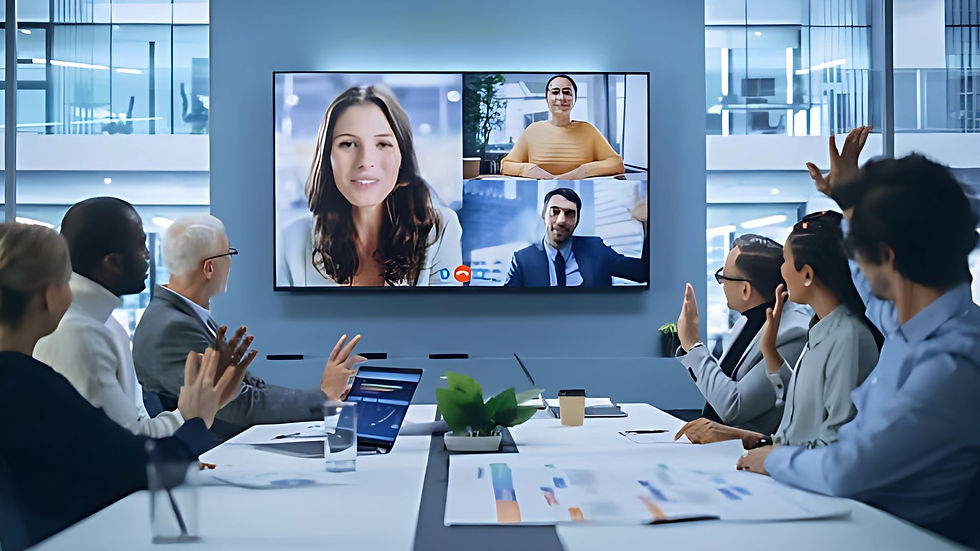
When equipped with a compatible camera, microphone and speakers, a smartboard can become an all-in-one video conferencing display.
Depending on the operating system and supported applications, users may conduct meetings through platforms such as:
Other compatible video conferencing platforms
Participants in the room can view remote attendees on a large screen, share presentation materials and discuss content together. This makes the smartboard especially useful for hybrid meetings, where some participants are physically present while others join remotely.
5. Smartboard vs TV vs Projector vs Whiteboard
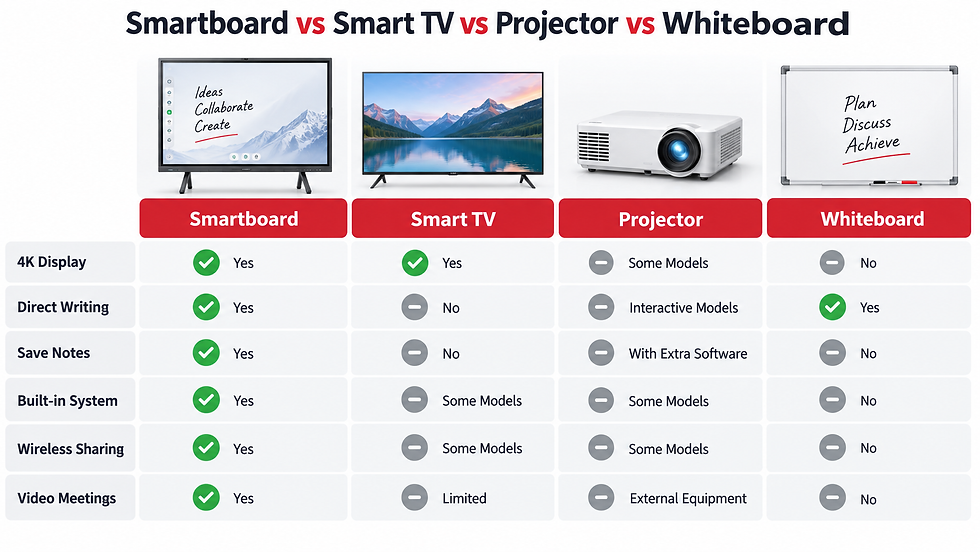
A smartboard, Smart TV, projector and traditional whiteboard can all be used to present or communicate information, but they are designed for different purposes.
A Smart TV and projector mainly display content, while a traditional whiteboard provides a simple writing surface. A smartboard combines both functions by allowing users to display, write, interact and collaborate on the same screen.
6. Does a Smartboard Need a Computer?
No. Most modern smartboards include a built-in Android operating system and can be used without connecting a separate computer.
Users can open the digital whiteboard, browse websites, play videos, access files, run compatible applications and join online meetings directly from the smartboard. The experience is similar to using a large Android tablet.
However, users can still connect a laptop or install an optional Windows OPS when they require specific software or a complete Windows environment.

Option 1: Use the Built-in Android System
For most everyday teaching, training and meeting activities, the built-in Android system is usually sufficient.
Users can:
Write and save digital notes
Browse websites
Open documents and presentation files
Play videos and multimedia content
Use compatible Android applications
Share content from other devices
Conduct online meetings
This is the simplest option because no separate computer or additional operating system is required.
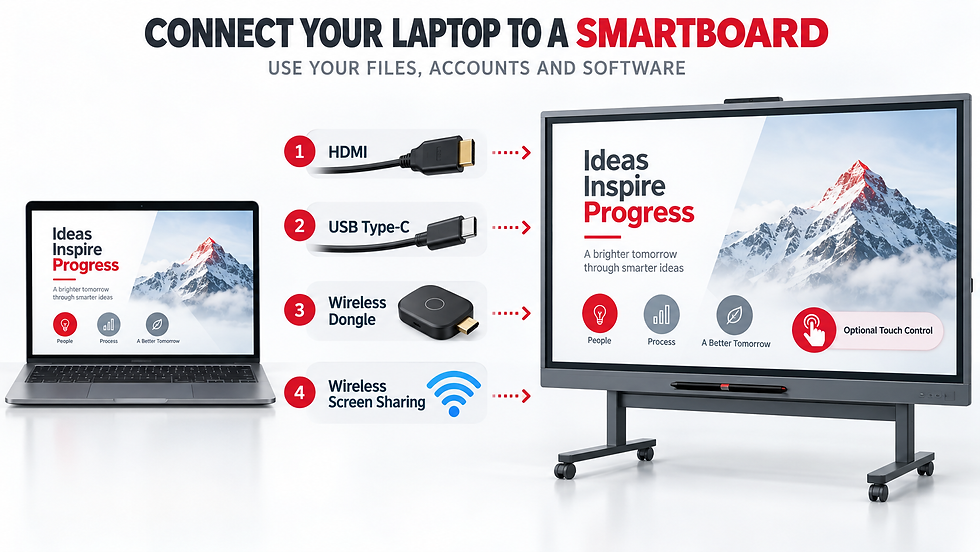
Option 2: Connect a Laptop
Users who need their own files, accounts or specialised computer software can connect an existing laptop to the smartboard.
Common connection methods include:
HDMI
USB Type-C
Wireless dongle
Wireless screen sharing
The laptop screen will appear on the smartboard, allowing everyone in the room to view the content. Depending on the connection method and device compatibility, users may also be able to control the laptop through the smartboard’s touchscreen.
Connecting a laptop is suitable for users who only require Windows occasionally and do not need a permanent Windows computer inside the smartboard.
Option 3: Install a Windows OPS
A Windows OPS is a compact computer module designed to fit directly into a compatible smartboard. It gives the smartboard a complete Windows operating system without requiring an external desktop computer or laptop.
A Windows OPS is suitable for:
Government departments and institutions
Organisations that rely on Windows-only software
Users who regularly work with specialised business applications
Schools using Windows-based education programs
Meeting rooms that require a permanent Windows setup
The OPS usually operates separately from the built-in Android system, allowing users to switch between Android and Windows when required.
7. Does a Smartboard Need Internet?
A smartboard does not require an internet connection for basic functions such as whiteboarding, HDMI presentations and opening locally stored files. Internet access is required for web browsing, cloud storage, online videos, app downloads and video conferencing.
8. Where Are Smartboards Used?
Smartboards are used in environments where people need to present, write, share information and collaborate. Their all-in-one design makes them suitable for education, professional training, corporate meetings, government institutions and commercial spaces.
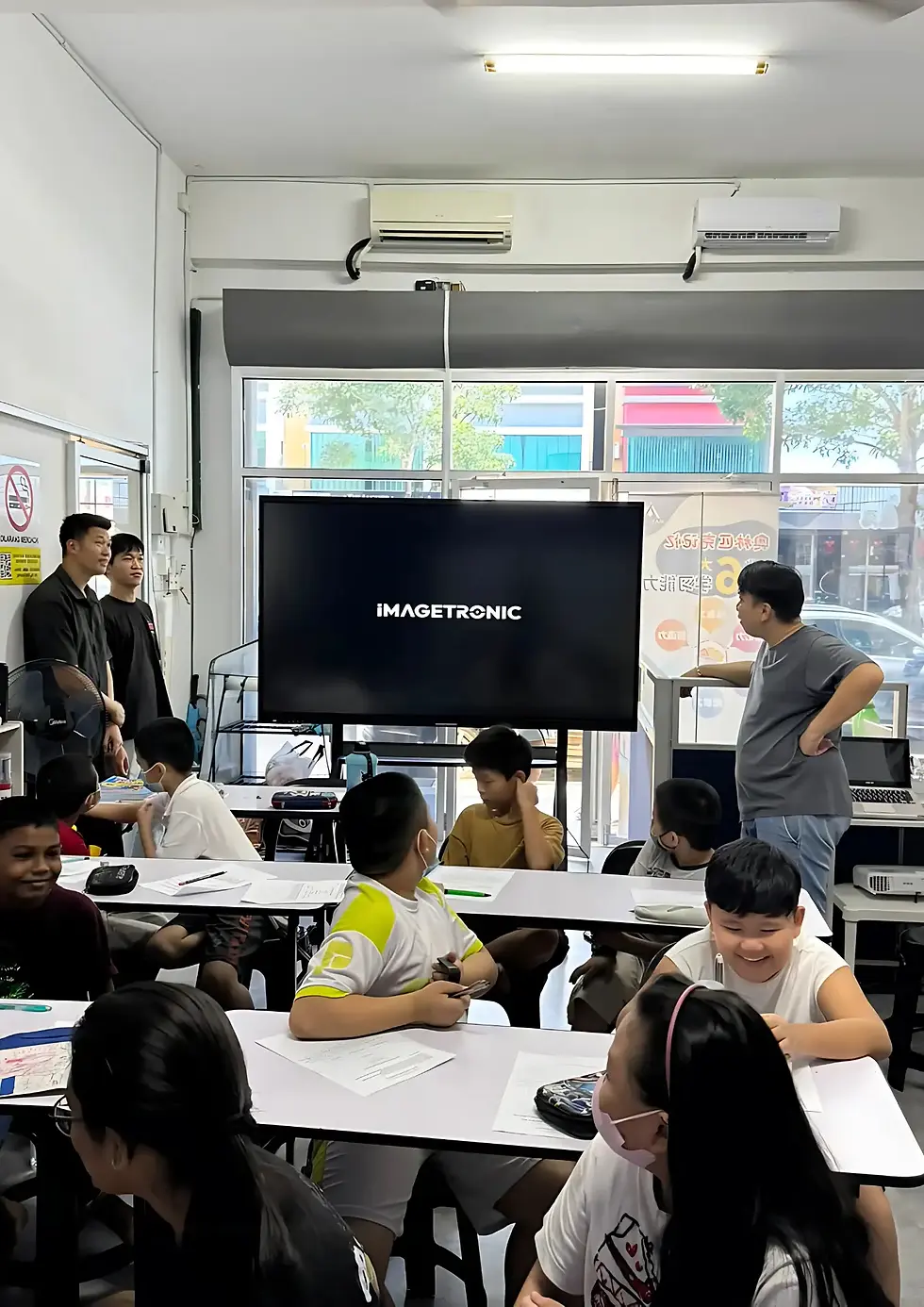
Education and Classrooms
Smartboards can make lessons more visual and interactive. Instead of only reading from textbooks or watching a presentation, teachers and students can interact directly with the content displayed on the screen.
Common classroom applications include:
Writing and drawing on a digital whiteboard
Displaying educational videos, images and websites
Annotating diagrams and learning materials
Inviting students to complete activities on the screen
Supporting group exercises and discussions
Saving and sharing lesson notes
Conducting hybrid or remote lessons
Teachers can prepare learning materials in advance, make changes during the lesson and save the completed notes for students to review later.

Training Centres
Training centres frequently switch between presentation slides, websites, videos, demonstrations and group activities. A smartboard brings these materials together on one interactive display.
Trainers can use it to:
Present PowerPoint slides, PDFs and videos
Write or highlight directly over training materials
Demonstrate websites, systems and applications
Conduct interactive exercises
Support both in-person and online participants
Save and share notes after the session
Switch between different trainers’ devices
This is particularly useful for professional courses, corporate training and workshops that require active participation.
Corporate Meeting Rooms
In a corporate environment, a smartboard can function as a presentation screen, digital whiteboard and video conferencing display.
Businesses can use it for:
Video meetings and hybrid discussions
Wireless presentations from laptops or mobile devices
Brainstorming and mind mapping
Project planning
Reviewing reports and documents
Annotating designs and proposals
Recording and sharing meeting notes
Instead of using separate displays, whiteboards, speakers and conferencing equipment, organisations can manage these activities through one connected system.
Government and Institutions
Government departments, universities and public institutions often require reliable display systems for meetings, training and official presentations.
Smartboards can support:
Departmental meetings
Staff training
Presentations and briefings
Data and report visualisation
Document review
Video conferencing between locations
Public information sessions
Institutions that regularly use Windows-based systems can connect a laptop or add a Windows OPS to access their required software.
Retail and Showrooms
In retail stores and showrooms, smartboards can provide a more interactive way to present products and information to customers.
Possible applications include:
Interactive product catalogues
Product demonstrations
Comparing different models or packages
Displaying promotional videos
Guiding customers through available options
Collecting customer information or enquiries
Using the screen as digital signage when it is not being used interactively
For example, a property showroom can use a smartboard to display floor plans, while a furniture or electronics retailer can allow customers to explore different products directly on the screen.
Smartboards are suitable for any environment that requires more than a conventional display—especially when presentation, writing, interaction and collaboration need to happen on the same screen.
9. What Smartboard Size Do You Need?
Choosing the right smartboard size depends on the size of the room, number of participants, seating arrangement and type of content being displayed.
A larger screen is not automatically the best choice. The smartboard should be large enough for people at the back of the room to read comfortably, while still fitting naturally within the available wall space.
The following recommendations provide a general starting point:
Smartboard Size | Recommended Audience | Suitable Applications |
55-inch | Small groups | Small meeting rooms, tuition centres and discussion rooms |
65-inch | 10–25 people | Classrooms, training rooms and departmental meetings |
75-inch | 20–40 people | Schools, meeting rooms and training facilities |
86-inch | 30–60 people | Large meeting rooms, universities and government institutions |
100-inch | 50–100+ people | Auditoriums, lecture halls and large venues |
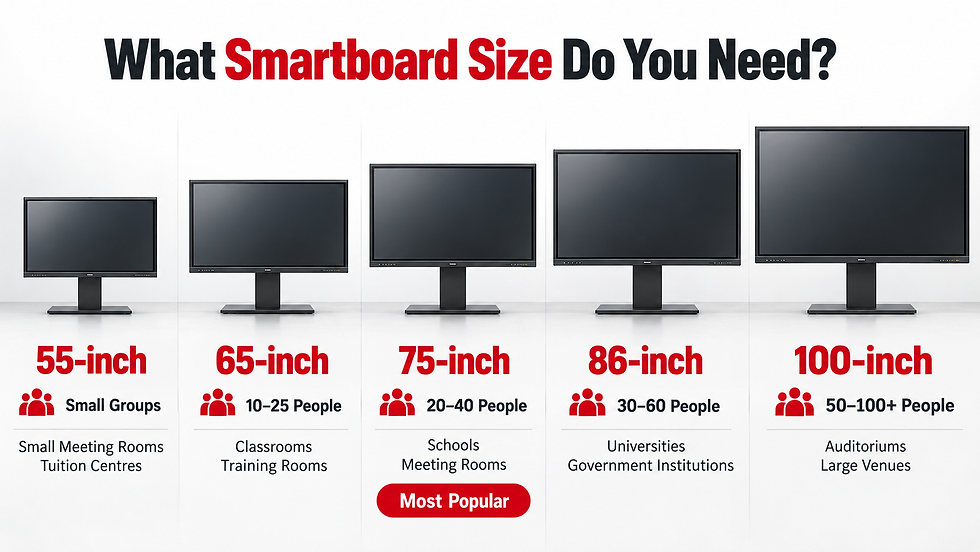
A general smartboard size guide based on room size, audience capacity and intended application.
10. What Are the Benefits of a Smartboard?

Advantages
Combines multiple meeting or teaching devices into one system
Encourages greater interaction and participation
Allows users to save, export and share digital notes
Supports both in-person and remote participants
Reduces the need for projectors, cables and separate equipment
Makes it easier to present videos, documents, websites and other multimedia content
Suitable for hybrid learning and hybrid meetings
Disadvantages
Higher initial cost than a traditional whiteboard
Wireless screen sharing may be affected by the network environment
New users may require basic training
Screen size and installation location must be planned in advance
12. About Imagetronic Smartboards
Imagetronic is a Singapore-based smartboard and smart display provider serving customers across Singapore and Malaysia. Backed by display industry expertise dating back to 2013 through Image Media Group, Imagetronic provides interactive display solutions for schools, training centres, meeting rooms, government institutions and businesses.

13. Frequently Asked Questions
What is a smartboard?
A smartboard is a large touchscreen display that combines a digital whiteboard, presentation screen, built-in operating system and collaboration tools in one device. Users can write, open files, play videos, share screens and conduct video meetings directly from the interactive display.
What is another name for a smartboard?
A smartboard is also commonly known as an interactive panel, interactive flat panel, interactive flat panel display (IFPD), digital whiteboard or interactive display. In Malaysia and Singapore, the term “smartboard” is increasingly used to describe these all-in-one interactive displays.
How does a smartboard work?
A smartboard uses touchscreen technology and a built-in operating system, usually Android. Users can operate it directly with a finger or stylus. It can also connect to laptops and mobile devices through HDMI, USB Type-C, a wireless dongle or wireless screen sharing.
Is a smartboard the same as an interactive panel?
Yes. The terms “smartboard” and “interactive panel” are often used interchangeably. Both generally describe a large touchscreen display designed for writing, presenting and collaboration. However, available features such as the camera, microphone, operating system and Windows support may differ between models.
What is the difference between a smartboard and a TV?
A television is mainly designed for viewing videos and presentations. A smartboard also allows users to write, draw, annotate, save notes and interact with content directly on the screen. It is designed for classrooms, training centres and meeting rooms where participation and collaboration are required.
Does a smartboard need a computer?
No. Most modern smartboards include a built-in Android system and can operate without a separate computer. Users can access the digital whiteboard, websites, applications, videos and files directly. A laptop or Windows OPS is only needed for specific Windows software or additional functions.
Does a smartboard need internet access?
No. A smartboard can perform basic functions such as digital whiteboarding, HDMI presentations and opening locally stored files without internet access. An internet connection is required for web browsing, cloud storage, online videos, application downloads, wireless services and video conferencing.
Can a smartboard run Windows?
Yes. A smartboard can run Windows by connecting a Windows laptop or installing a compatible Windows OPS computer module. An OPS provides a complete Windows environment inside the smartboard and is useful for organisations that regularly use Windows-based software or specialised applications.
Can I connect my laptop to a smartboard?
Yes. Most smartboards support laptop connections through HDMI, USB Type-C, a wireless dongle or wireless screen sharing. HDMI normally provides the most stable connection, while wireless options offer greater convenience. Touchback control may also be available, depending on the connection method and device compatibility.
What size smartboard should I choose?
The ideal size depends on the room, viewing distance and audience. A 65-inch model generally suits 10–25 people, 75-inch suits 20–40, 86-inch suits 30–60, and 100-inch is more suitable for auditoriums or audiences of 50–100 people or more.
How much does a smartboard cost?
Smartboard prices vary depending on screen size, Android specifications, touchscreen technology, camera, microphone, Windows OPS, installation and warranty coverage. Larger models generally cost more. Buyers should request a quotation based on their room size, intended application and required technical specifications.
Where can I buy a smartboard in Singapore or Malaysia?
Imagetronic supplies smartboards and interactive display solutions to schools, training centres, businesses and institutions across Singapore and Malaysia. Customers can contact Imagetronic to request product information, compare suitable screen sizes, arrange a demonstration or obtain a quotation for delivery and installation.
Discover Imagetronic Smartboards
Want to learn more about Imagetronic Smartboards? Explore our available models, screen sizes, features and interactive display solutions for classrooms, training centres and meeting rooms.
Looking for a more flexible payment option? Discover our Rent-to-Own packages and find a smartboard plan that suits your organisation’s needs and budget.


Comments